Get Street Names
Draw a shape, click a button, and AGMT lists every street inside the boundary — complete with colour-coded highway markers on the map.
Preview
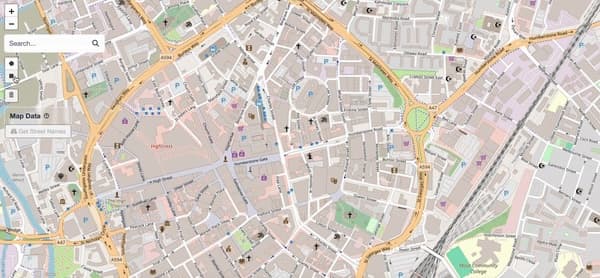
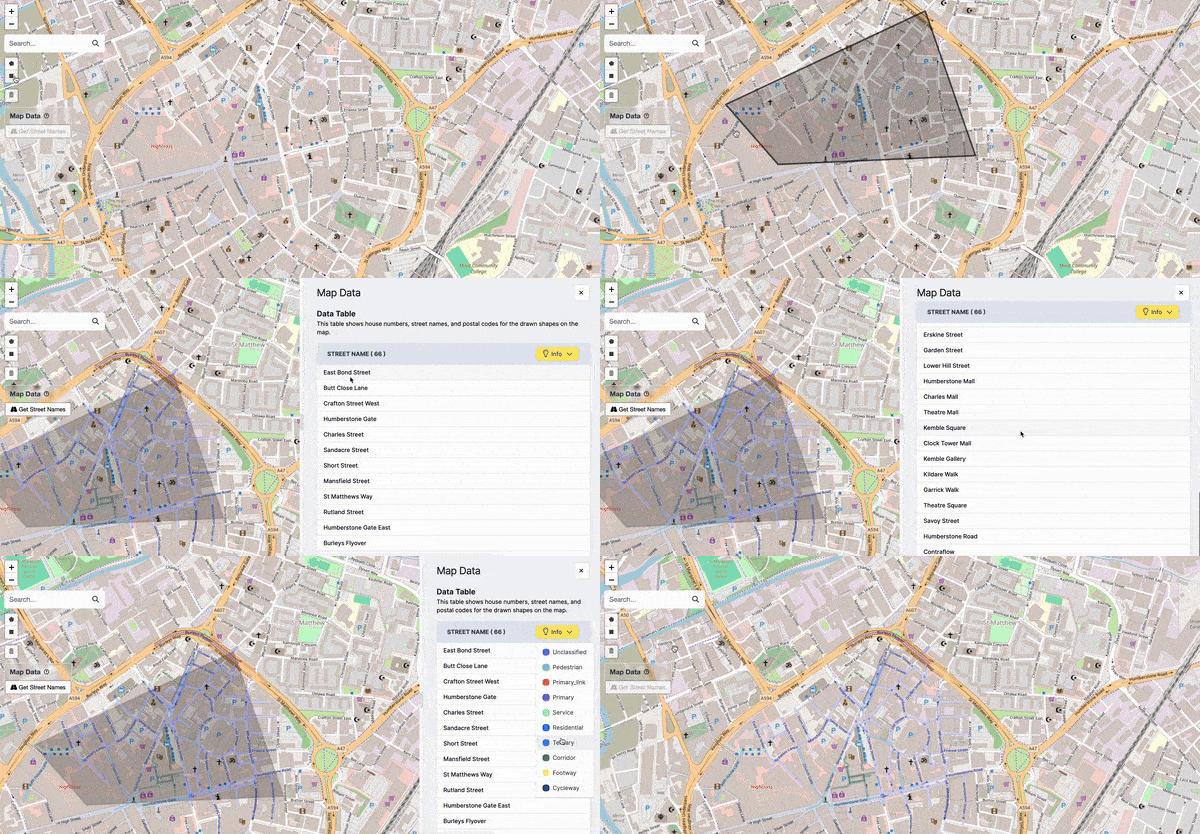
Street names and highway nodes displayed after analysis.
Steps
Draw a Shape
Keep your area focused. Selecting a very large region (e.g. an entire county) may exceed your browser's memory and cause an error. Start with a neighbourhood or small town.
Follow the Shape Tools guide to draw a polygon or rectangle on the map.
Select the Shape
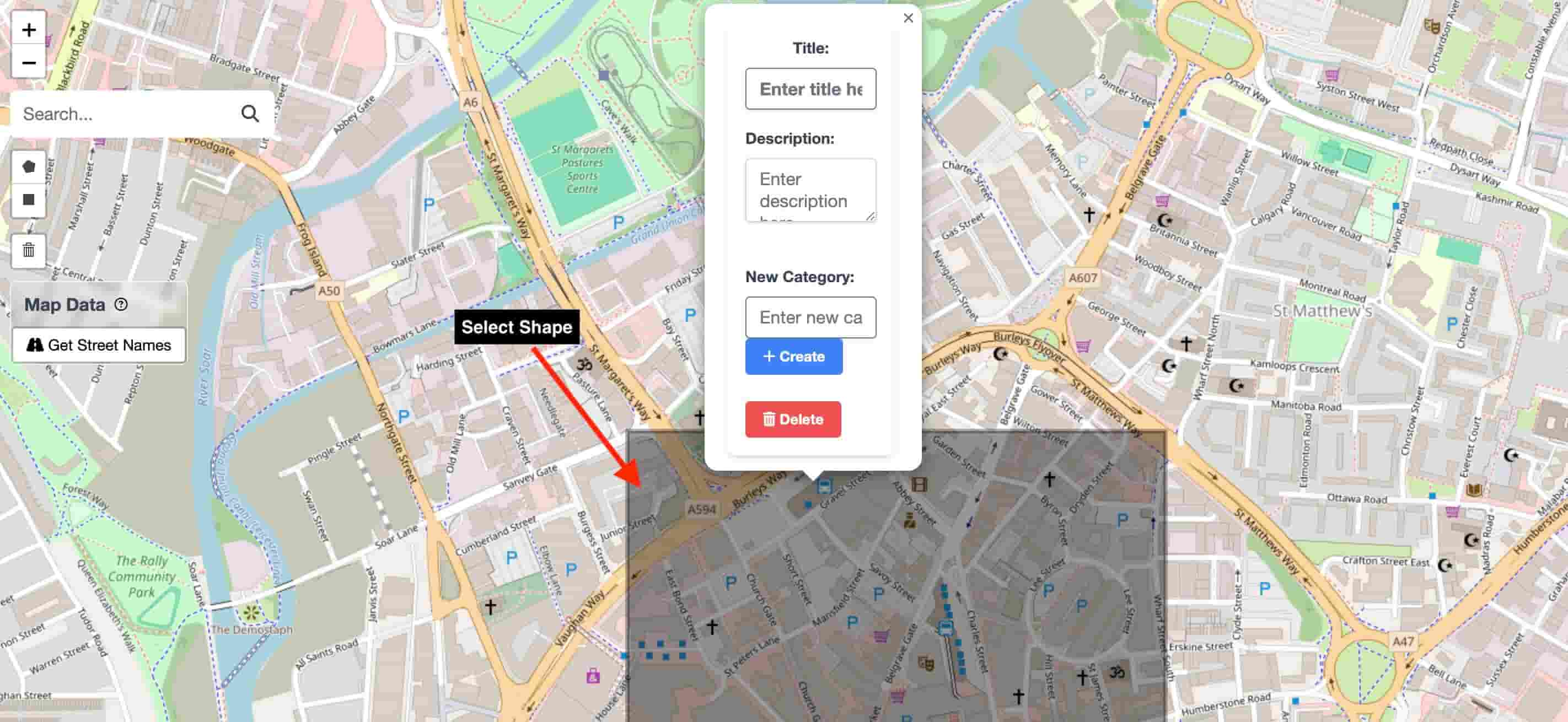
Click on a drawn shape to select it.
Click on the drawn shape to select it (it will highlight).
Click "Get Street Names"
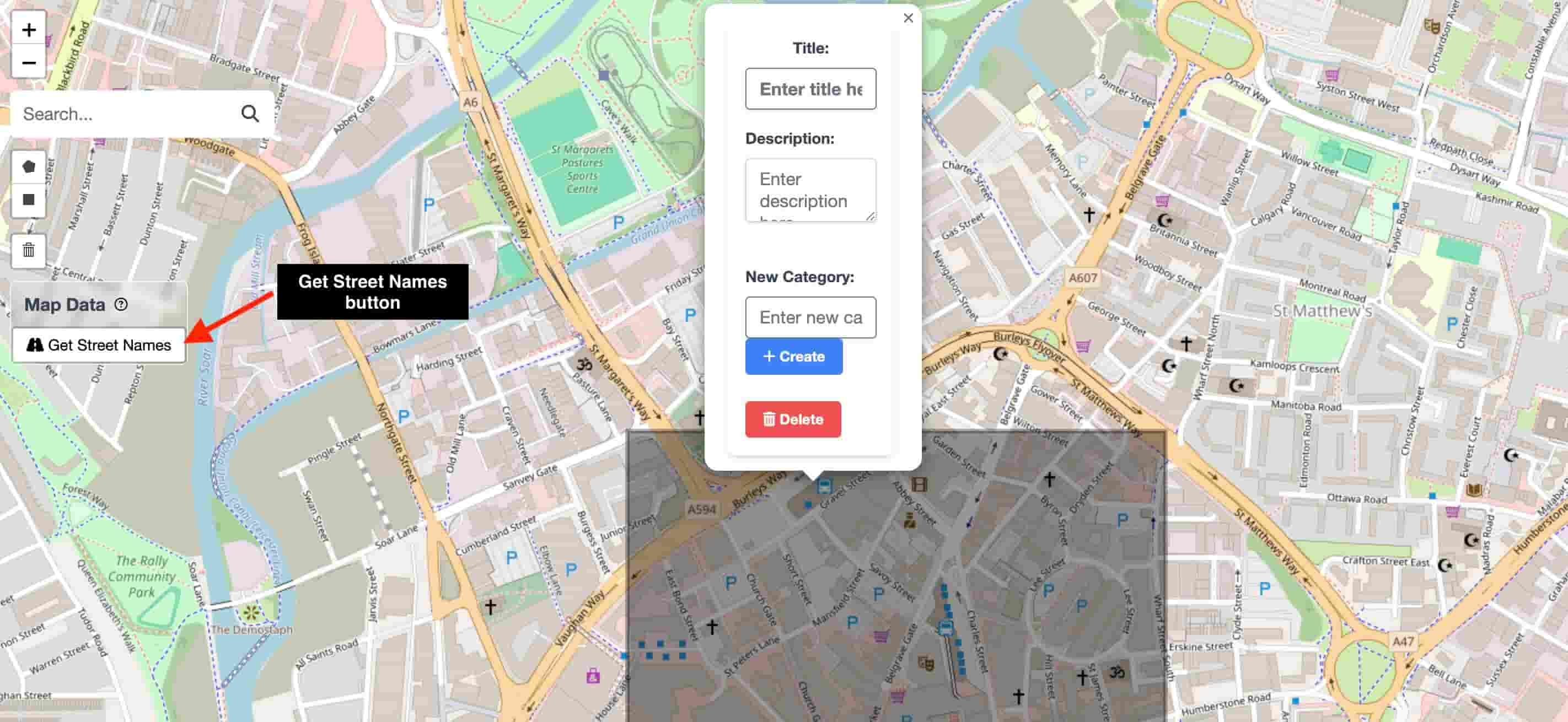
The "Get Street Names" button at the top-left of the map.
Click the Get Street Names button (top-left of the map). The app queries for all streets and addresses inside the shape.
View Results
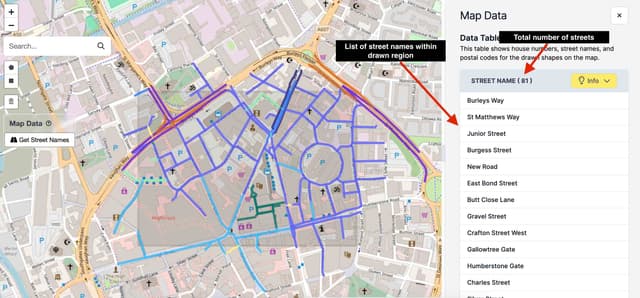
(Fig 1) List of street names and total count.
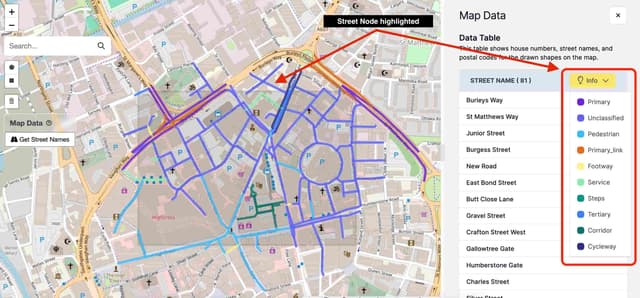
(Fig 2) Each line is a street node plotted on the map. Colours indicate the road type — expand the legend to see what each colour means.
A sidebar panel opens showing:
- Street list (Fig 1) — every street name within the selected area, with the total count.
- Highway legend (Fig 2) — expand the Info dropdown to see which colour represents which highway type. See Highway Types Legend for the full reference.
Close the Panel (Optional)
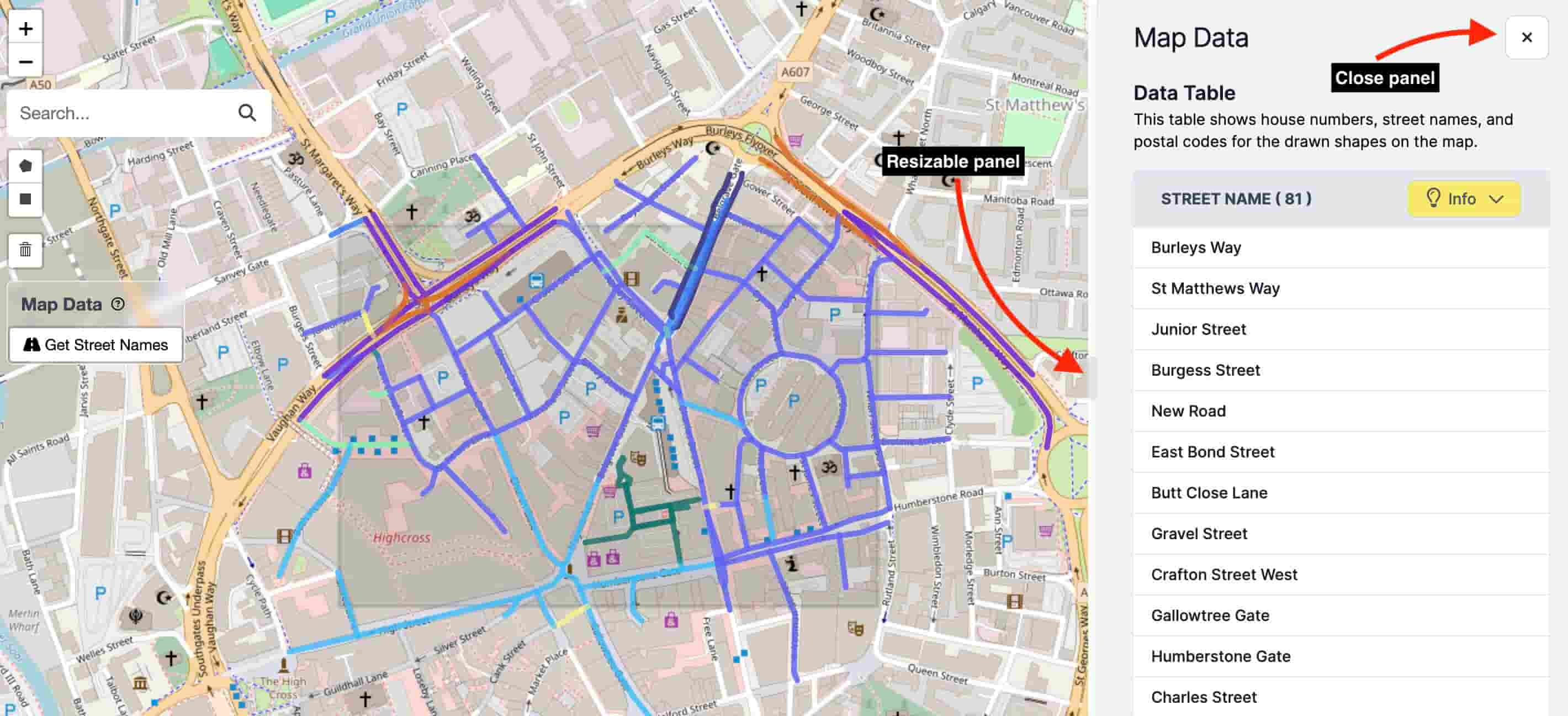
Click the X button to close the panel and return to the full map view.
Click the X button to close the panel and return to the full map view.