Rectangle Tool
The quickest way to select a block or grid-shaped area. One click-and-drag is all it takes.
Preview
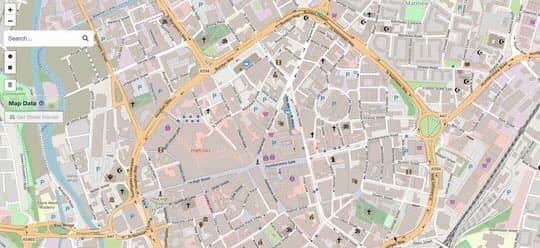
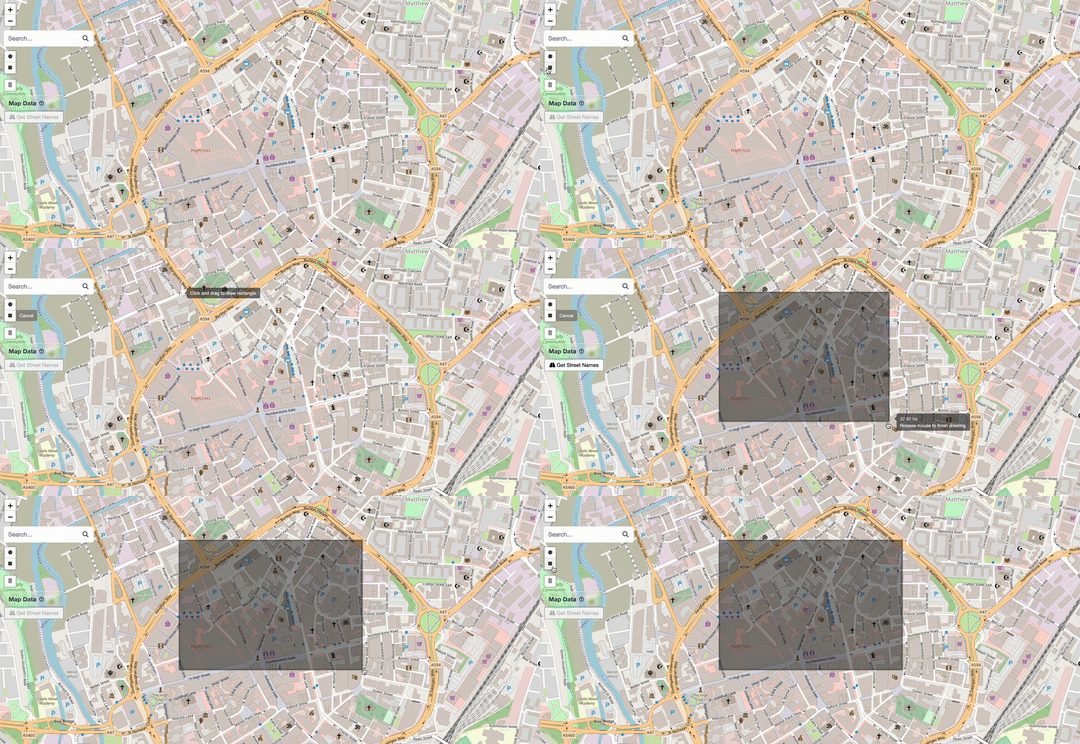
Drawing a rectangle on the map.
How to Draw
Select the Tool
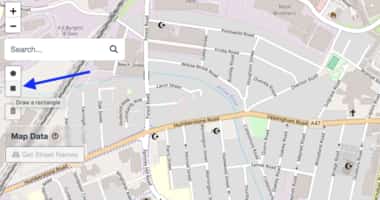
Enlarge
Click the rectangle button in the toolbar (top-left).
Click & Drag
Click on the map where you want one corner, hold the mouse button down, and drag to the opposite corner. The shape previews in real time.
Release to Complete
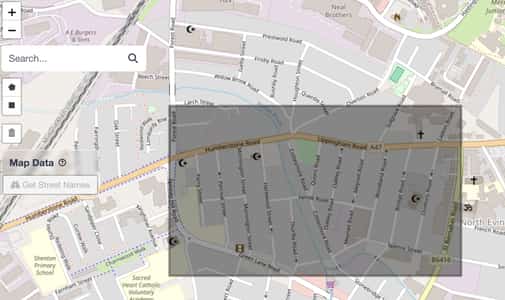
Enlarge
Release the mouse button.
Set Shape Properties
After drawing, the Shape Details form appears. Use this to categorise your data for analysis.
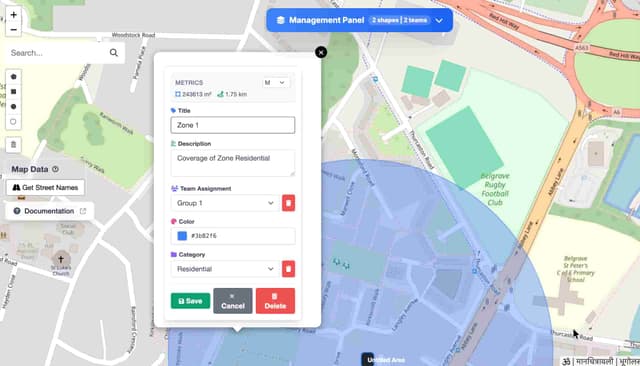
Enlarge
Fill in:
- Title — Give it a name (e.g., "Zone 1")
- Description — Optional notes
- Team — Assign to a team
- Color - Give a custom color to shape
- Category — Residential, Commercial, etc.
Done!
You've successfully created a rectangle.