Circle Tool
Draw radius-based territories by setting a center point and dragging to define the size. Perfect for coverage areas and distance-based zones.
Preview
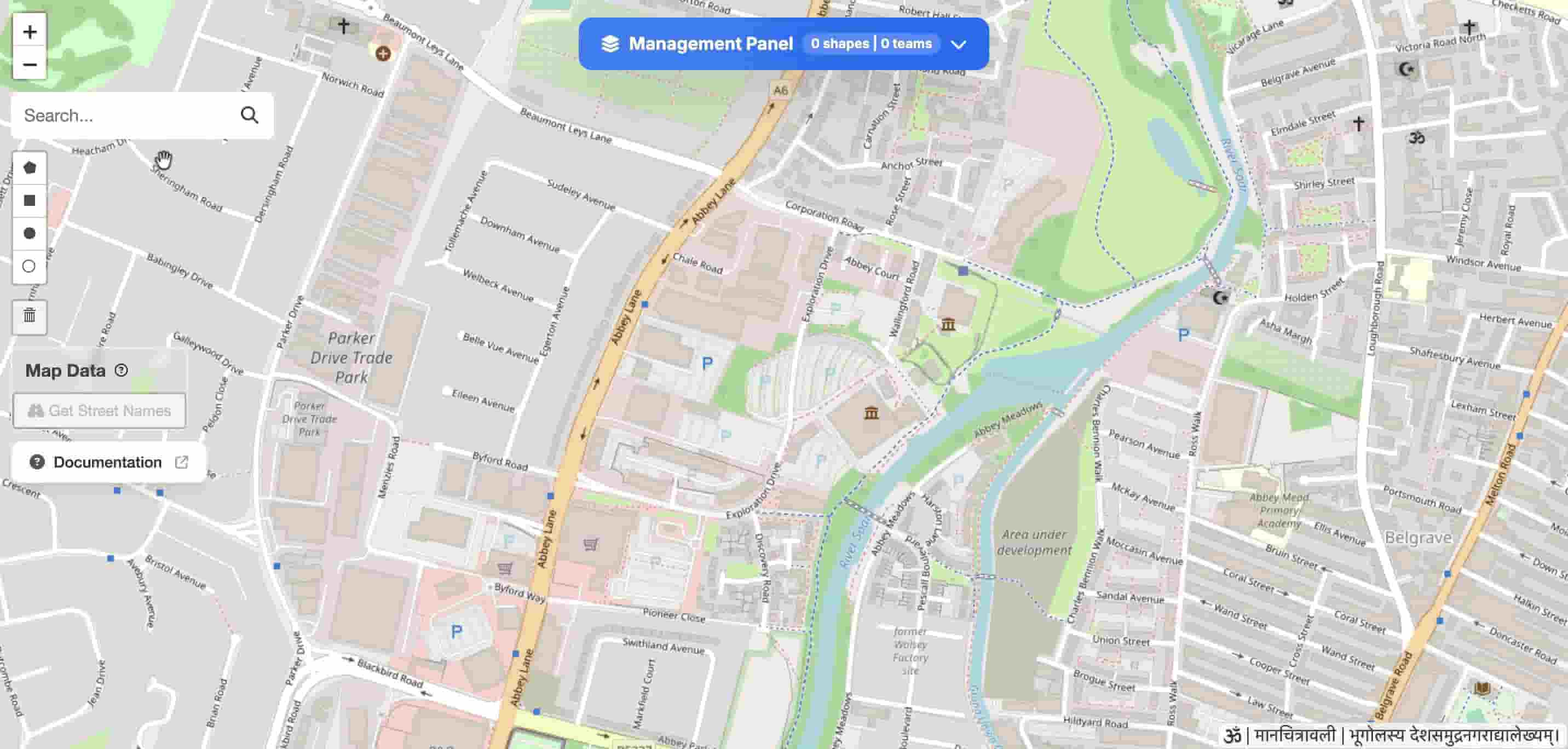
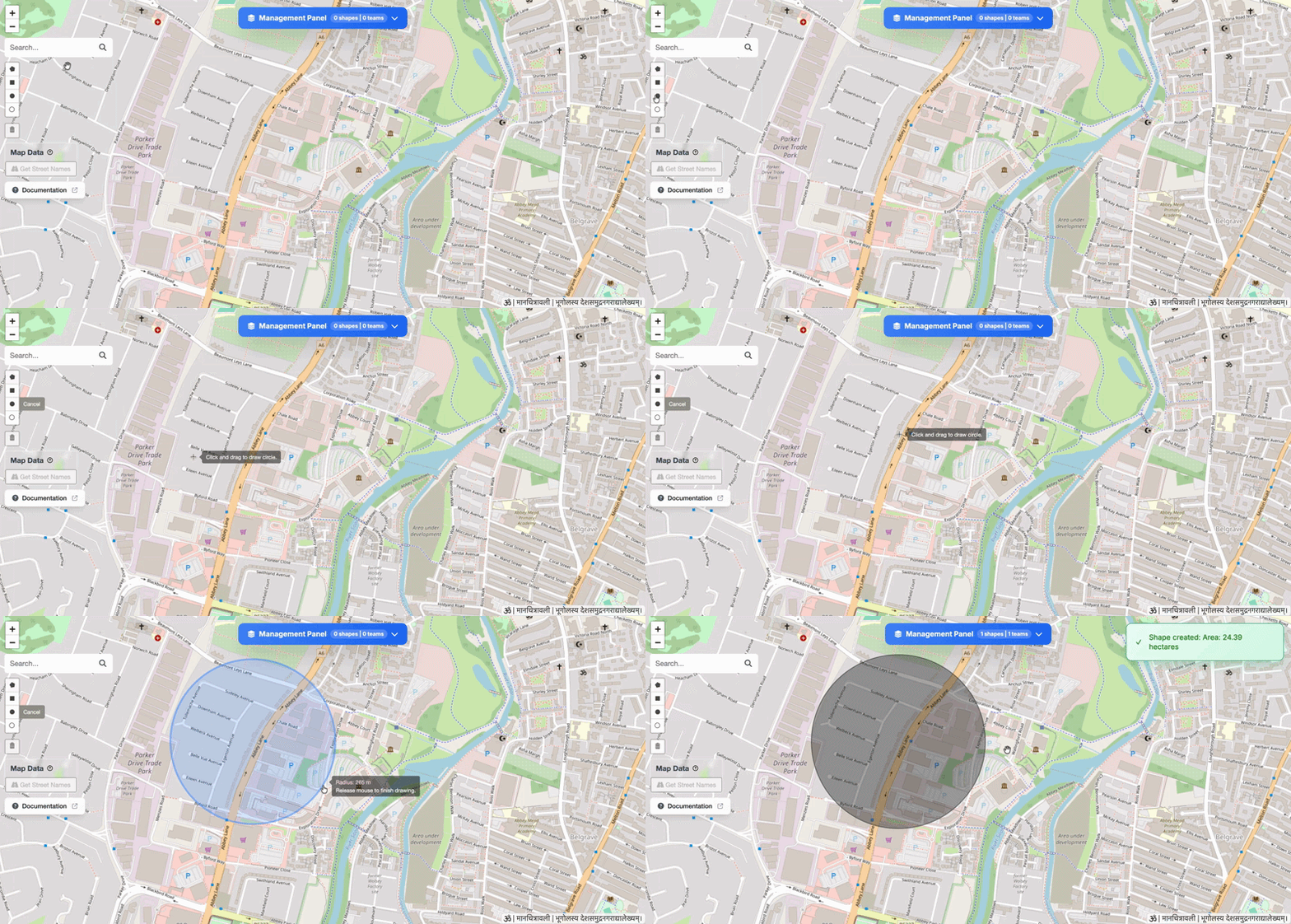
Drawing a circle on the map
How to Draw
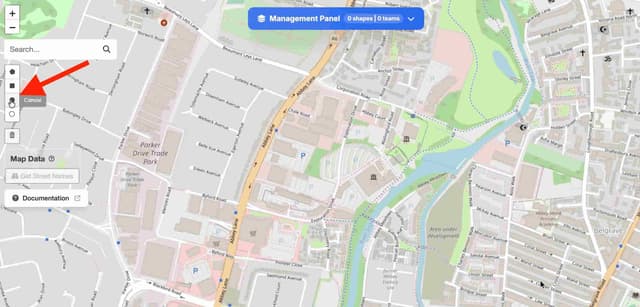
Select the Tool
Enlarge
Click the circle button in the toolbar (top-left).
Set Center & Drag
Click on the map to place the center point, then drag outward to set the radius. The measurement updates in real time as you drag.
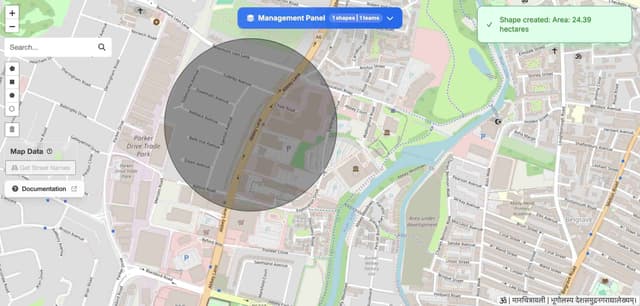
Release to Complete
Enlarge
Release the mouse button.
📏
The radius displays in meters or feet based on your map settings.
Set Shape Properties
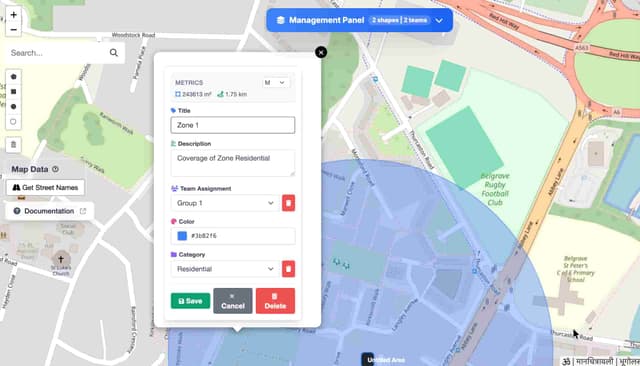
After drawing, the Shape Details form appears. Use this to categorise your data for analysis.
Enlarge
Fill in:
- Title — Give it a name (e.g., "Zone 1")
- Description — Optional notes
- Team — Assign to a team
- Color - Give a custom color to shape
- Category — Residential, Commercial, etc.
Done!
You've successfully created a circle.