Sidebar Panel
The sidebar is a resizable panel on the right side of the map. It's your command centre for managing teams, shapes, and street data — all without leaving the map view.
How to Open the Sidebar
Opening the sidebar
The sidebar can open automatically depending on what you do in the app.
Open the sidebar in three different ways
You can open the sidebar from three different places:
Click Open Shape Details button at footer of list.
Management Tool → Teams tab
Click on any team card.
Map → Select shape → Get Street Names
Select a shape on the map and click Get Street Names.
Tabs Overview
The sidebar has three tabs at the top. Click a tab to switch. The active tab is highlighted with a coloured background.
Teams Tab
The Teams tab lists all your teams, shows which shapes belong to each, and can display summary stats like total streets and addresses for that team.
What you see
| Element | Description |
|---|---|
| Team name | With a colour indicator |
| Shape count | How many shapes are assigned to this team |
| Active / Total | Header shows e.g. "3 active / 5 total" |
| Team stats (optional) | When expanded, shows a summary of streets, buildings, or addresses for that team |
What you can do
| Action | How |
|---|---|
| Create a team | Click the purple New Team button |
| Rename a team | Click in the team name field and edit directly |
| Delete a team | Click the delete option on the team card |
| Expand / Collapse team | Click the header to show or hide the list |
| Show/Hide empty teams | Use the Show Empty / Hide Empty toggle in the header |
| View assigned shapes | Expand a team to see its shapes |
| Zoom to team on map | Click the crosshairs icon to zoom the map to all areas belonging to that team |
Stats: streets, buildings, addresses
When a team is expanded, you can see a stats panel summarising data for its areas (for example total streets, and addresses within the team’s shapes).
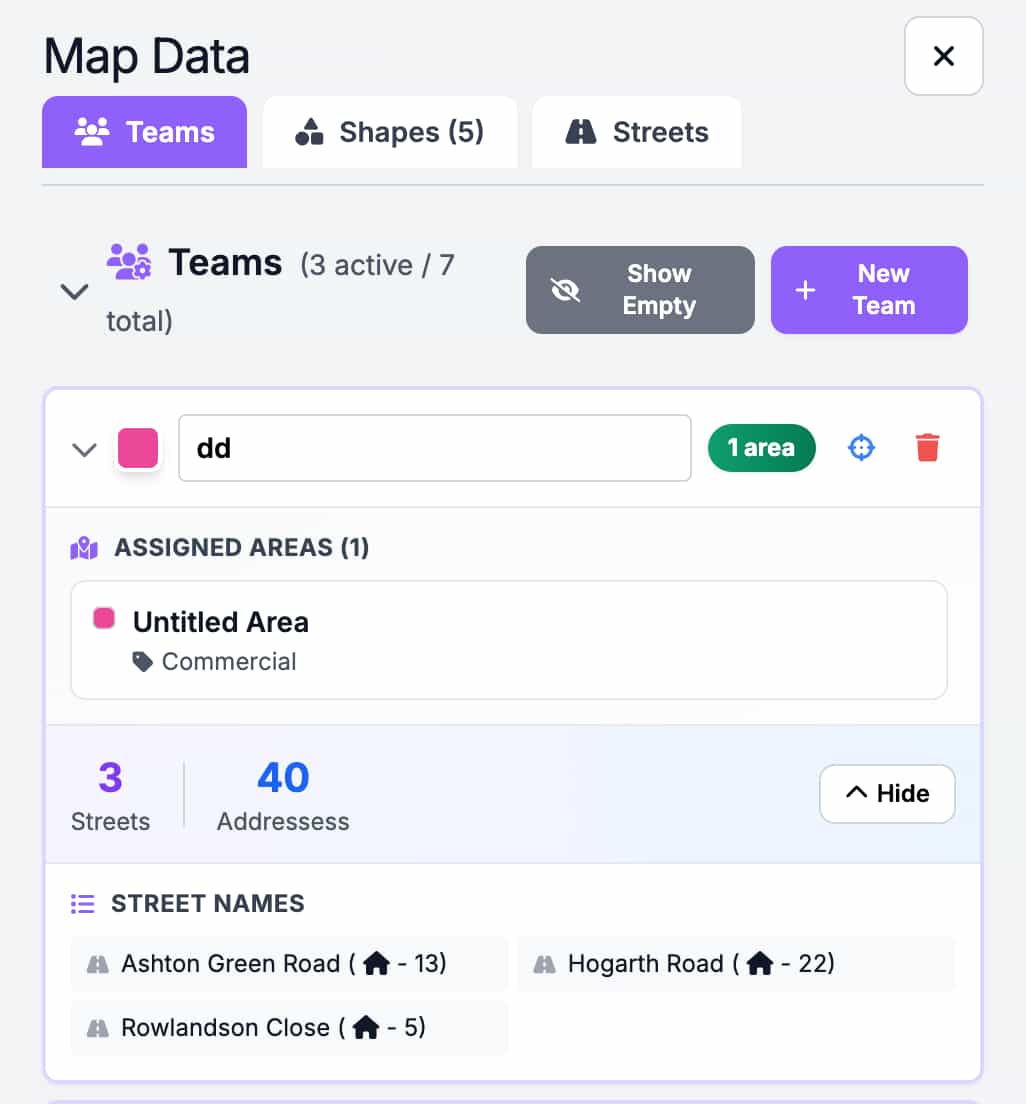
- Stats are calculated from the shapes assigned to that team.
- The app will automatically fetch any missing data in the background when the Teams panel is open.
- While data is loading you may see a spinner or loading indicator in the stats section.
- You can refresh the stats for a team if the underlying data has changed (for example after drawing or editing areas).
For full details on creating, deleting, and assigning teams and how stats are calculated, see Managing Teams.
Real-Time Updates
Everything in the sidebar updates instantly when you:
- Draw, edit, or delete a shape
- Create or delete a team
- Assign or reassign a shape to a team
- Change a category
No need to refresh — the sidebar always reflects the current state of your map.
Sidebar vs Management Tool
Not sure which to use? Here's a quick comparison:
| Feature | Sidebar | Management Tool |
|---|---|---|
| Position | Fixed panel on the right | Floating on the map |
| Resizable | Drag to resize | ❌ Fixed size |
| Tabs | Teams + Shapes + Streets | Shapes only |
| Search | Full search bar | ❌ |
| Team management | Create / delete | ❌ |
| Category management | ❌ (popup form only) | ❌ |
| Street data | Dedicated tab | ❌ |
| Best for | Detailed management | Quick actions on the map |
For the full breakdown of which actions are available where, see interfaces.